Code::Blocks
Code::Blocks is a free, open source, cross platform IDE.
Create a new project
From Code::Blocks' main screen, click Create a new project or select File > New > Project…
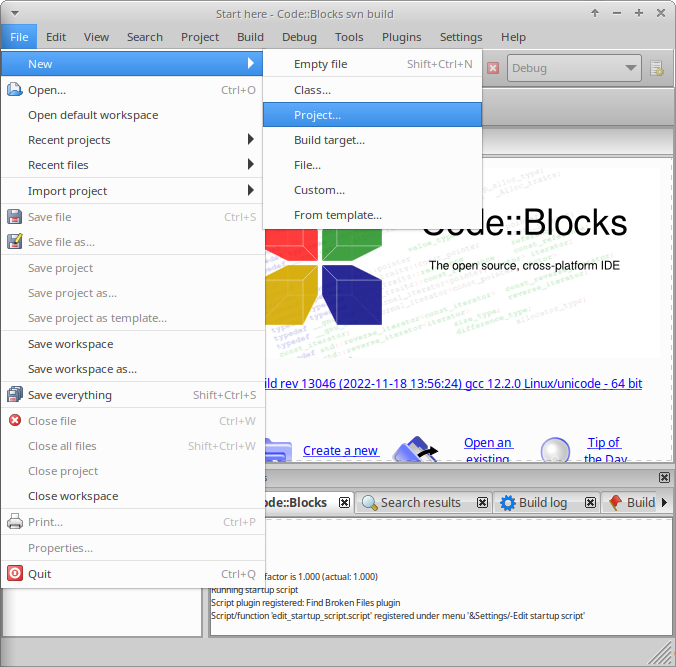
Create a new project…
In the New project window, from Projects, select Empty project, and click Go.
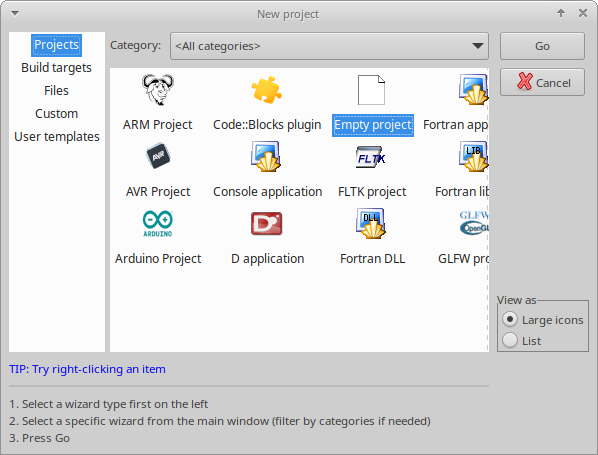
Create an empty project
Click Next > to pass the welcome to the new empty project wizard.
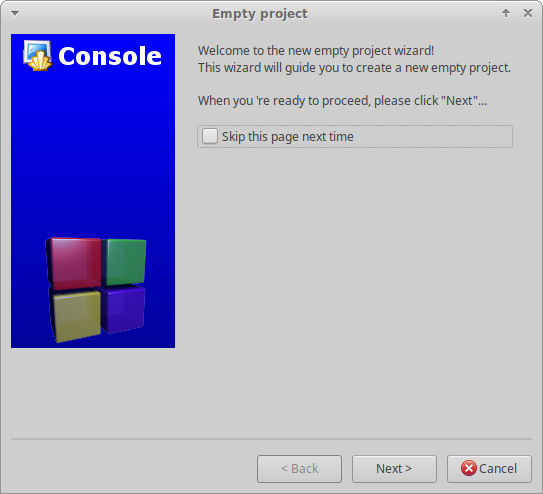
Welcome to the new empty project wizard
The Code::Blocks project file needs to be created in the root of the cloned project folder.
To achieve this,
first, ensure that the Project title is the same as the folder name that Rebel Engine was cloned into.
Unless you renamed the folder, this will be RebelEngine.
Second, ensure that the Folder to create project in is the folder you ran the Git clone command from;
not the RebelEngine project folder.
Confirm that the Resulting filename field will create the Code:Blocks project file (.cbp) in the root of the cloned project folder.
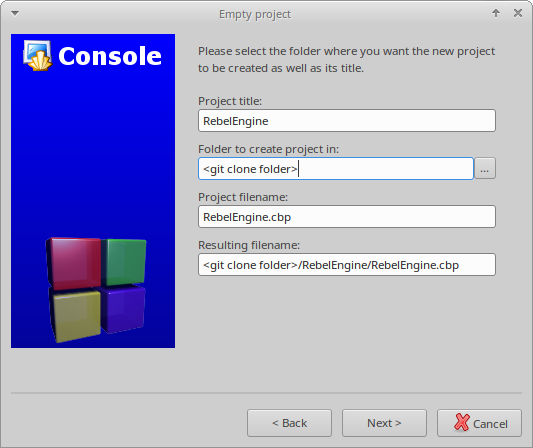
Project title: "RebelEngine" and location: git clone folder
When you are sure the Code::Blocks project file will be created in the project root folder, click Next >.
The compiler and configuration settings are managed through SCons. These will be configured later. However, it's worth deselecting the Create "Release" configuration option; so only a single build target is created before clicking Finish.
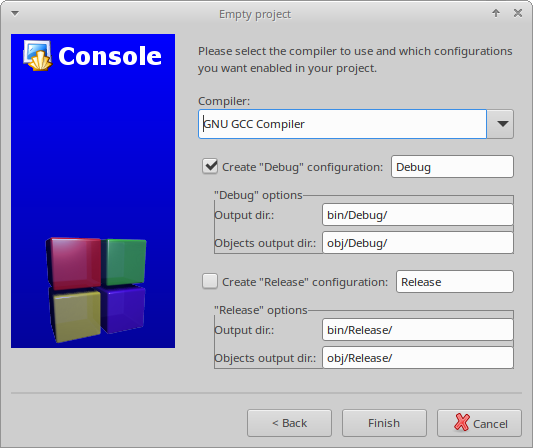
Create the default "Debug" configuration only
Add Rebel files to the project
To add all the Rebel source files to the project, right-click on the RebelEngine project and select Add files recursively….
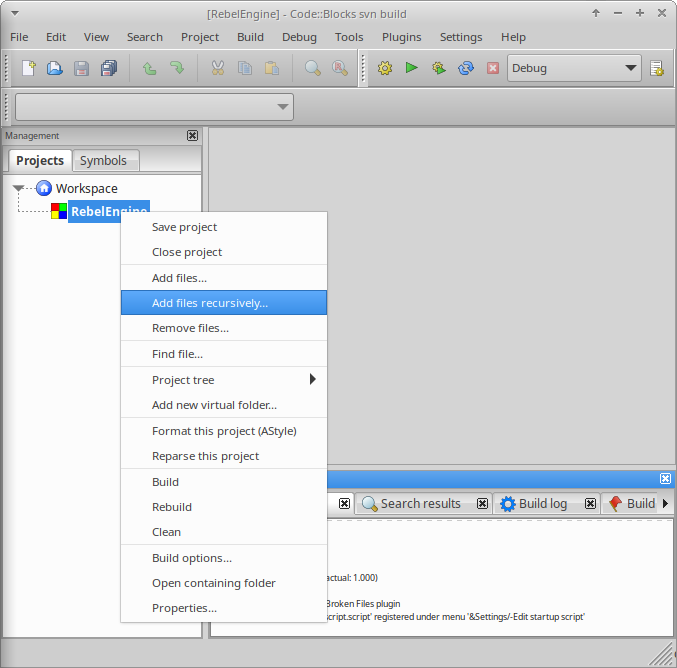
Add files recursively
It should automatically select the project root folder.
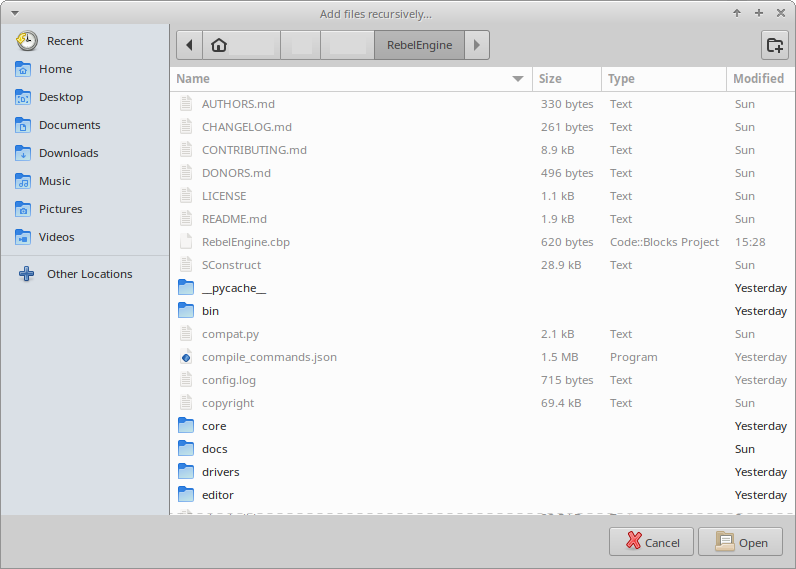
The project root folder
If you don't see the project root folder,
you probably didn't create the Code::Blocks project file in the project root folder.
Go back to Create a new project, and recreate the RebelEngine project.
Ensure that, the Resulting filename field will create the Code:Blocks project file (.cbp) in the root of the cloned project folder.
If you do see the project root folder, simply click Open. By default, all code files are included; so simply click OK.
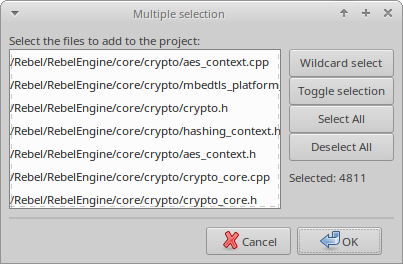
All code files selected by default
As improvements are made to Rebel Engine, files and folders are added, removed and renamed. Code::Blocks does not automatically update the files and folders; unless you are personally making the changes. Whenever you want to update the project's files and folders, simply, right-click on the RebelEngine project and select Remove files….
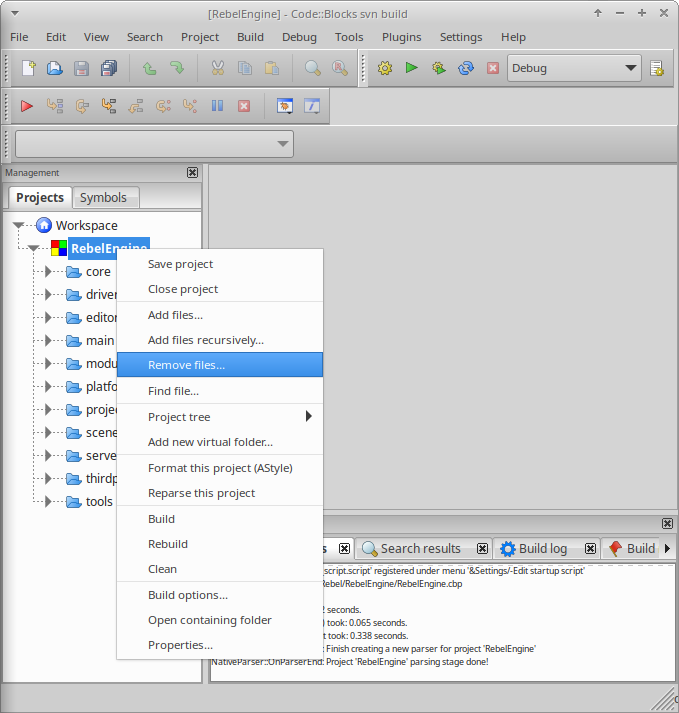
Remove files…
This will remove all the project's files and folders. Now, simply Add files recursively… again.
Configure the build
The first step is to change the project properties. Right-click on the new project and select Properties….
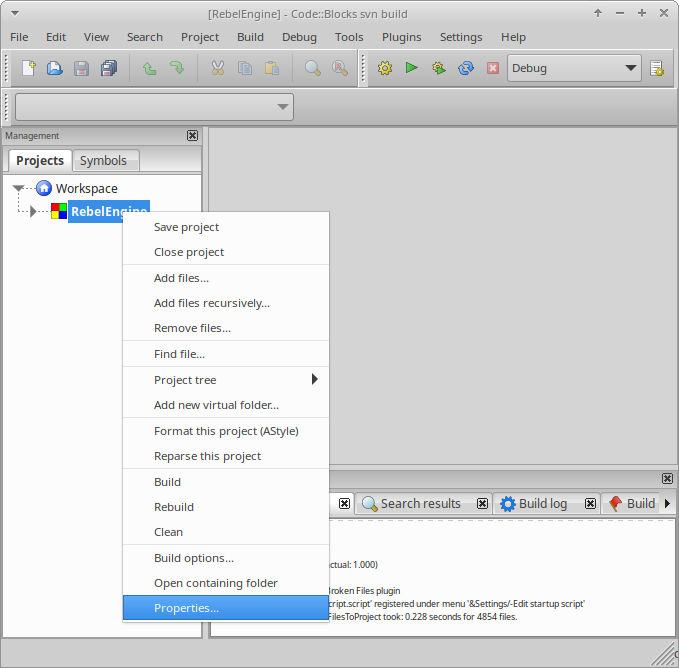
Project properties…
Check the This is a custom Makefile property.
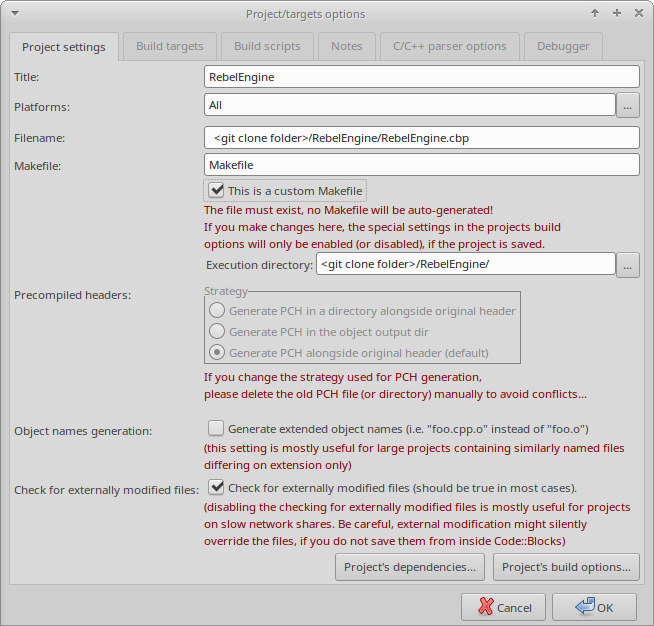
This is a custom Makefile
Click OK to save the changes.
The next step is to change the build options. Right-click on the RebelProject project and select Build Options….
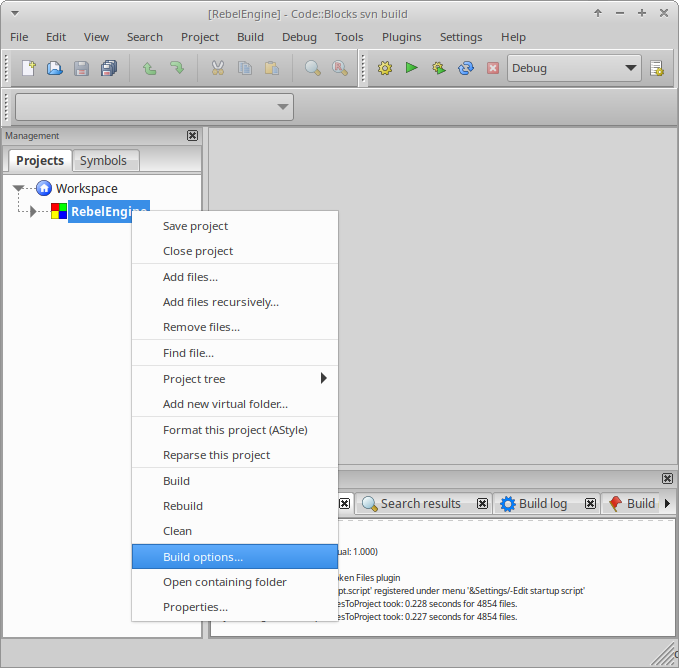
Project build options…
Select the "Make" commands tab.
Remove all the existing commands for all the build targets.
For each build target enter the SCons command for creating the desired build in the Build project/target field.
The minimum is scons.
For details on the SCons build options,
see Introduction to the buildsystem.
It's also useful to add the scons --clean command in the Clean project/target field.
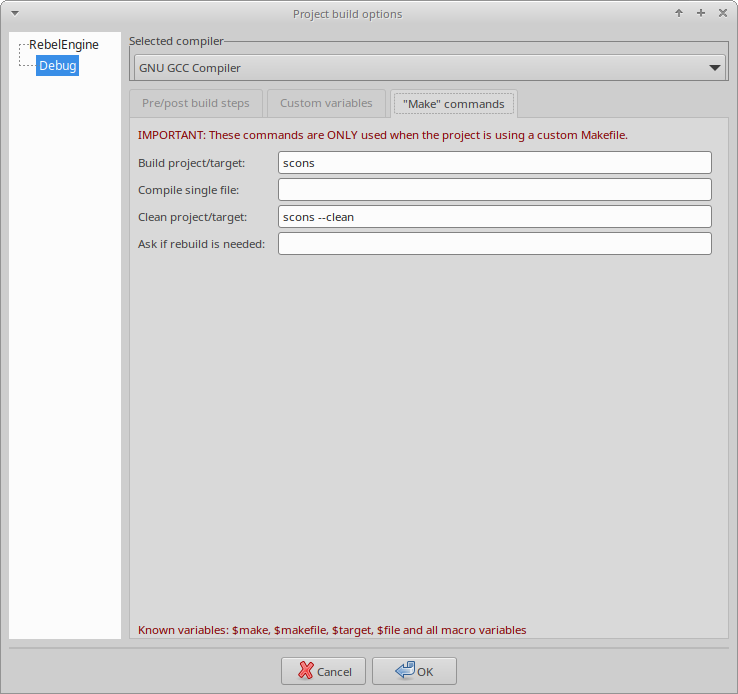
"Make" commands: Build: "scons", Clean: "scons --clean"
If you're using Windows,
all the commands need to be preceded with cmd /c to initialize the command interpreter.
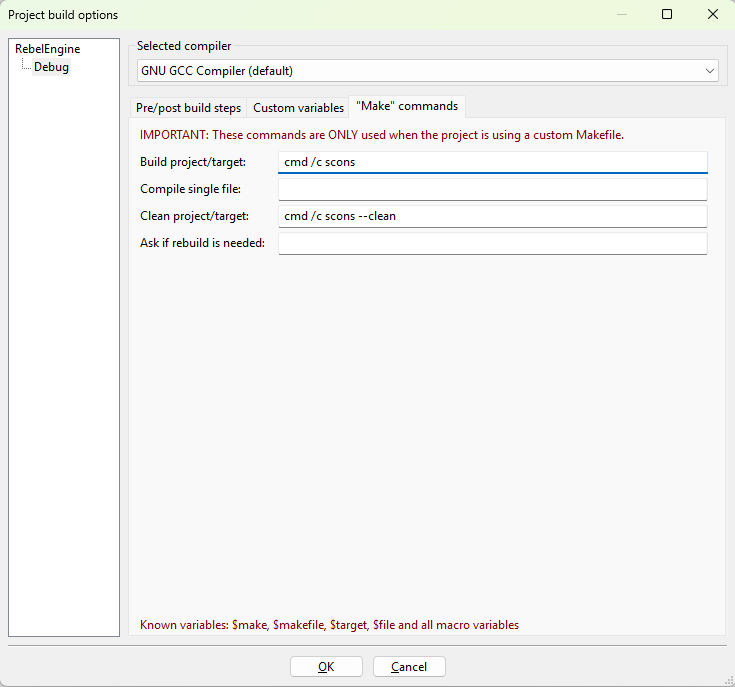
Windows "Make" commands: Build: "cmd /c scons", Clean: "cmd /c scons --clean"
Code::Blocks should now be configured to build Rebel Engine. You can either select Build > Build, click the gear button, or press Ctrl+F9.
Configure the run
Once SCons has successfully built the desired target,
reopen the project Properties….
Select the Build targets tab.
In the Output filename field, browse to the bin folder and select the compiled file.
Deselect the Auto-generate filename prefix and Auto-generate filename extension options.
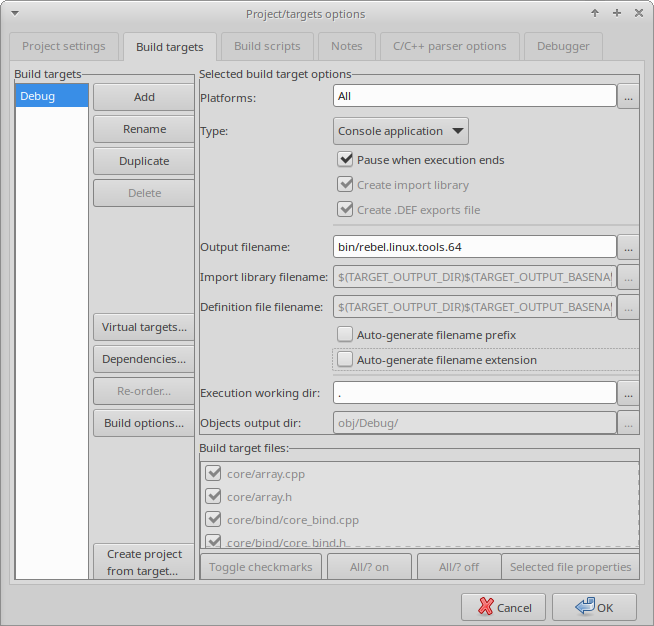
Output filename and don't auto-generate prefix or extension
There are two additional points worth noting:
If required, the Execution working dir field can be used to test specific projects. Set it to the folder containing the
project.rebelfile.The Build targets tab can be used to add and remove build targets for working with and creating different builds.
Code::Blocks should now be configured to run your compiled Rebel Engine executable. You can either select Build > Run, click the green arrow button, or press Ctrl+F10.
Save your settings
By default, Code::Blocks does not save your workspace settings. To avoid opening your project each time, you can set Code::Blocks to open the default workspace on start-up. Go to Settings > Environment….
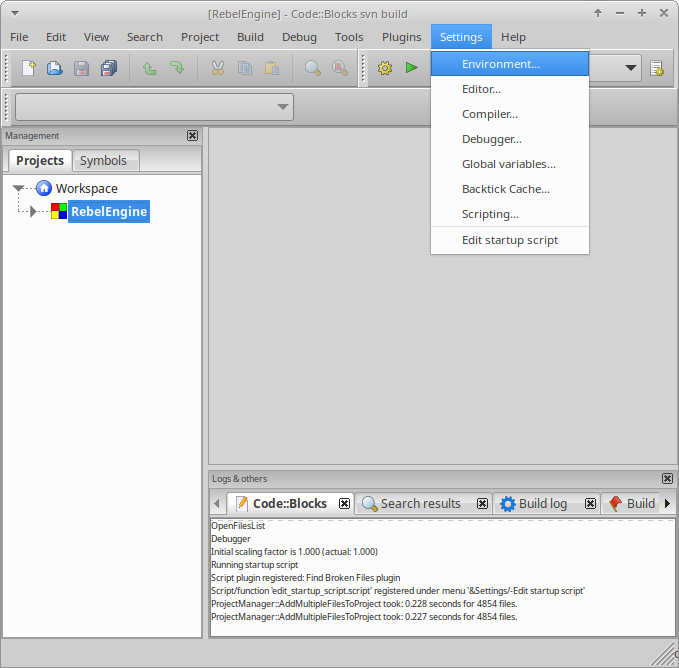
Environment settings…
Under General settings find the On application start-up section. Select the Open default workspace option.
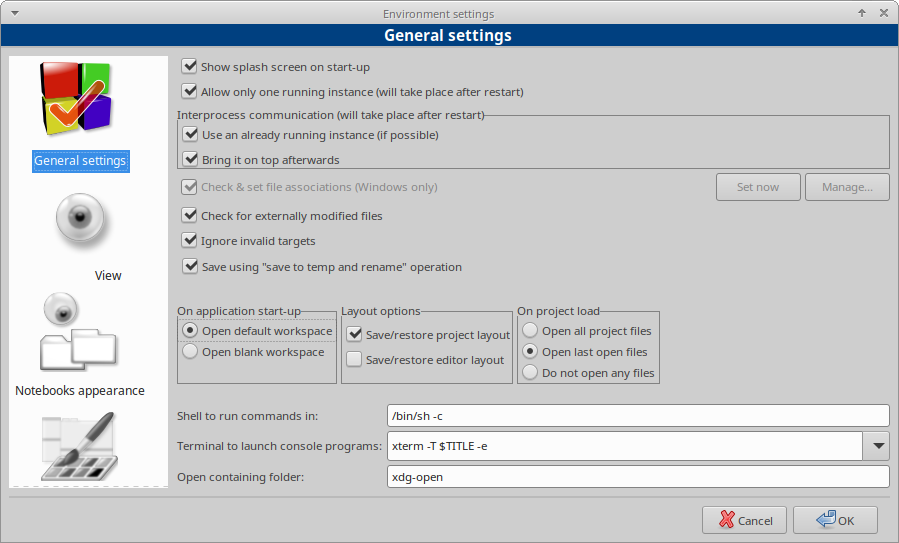
Open-default workspace
Click Ok.
When exiting, you will be prompted to save the workspace.
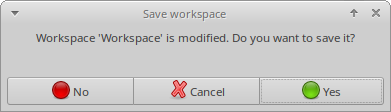
Save the workspace
Then you will be prompted to save the project.
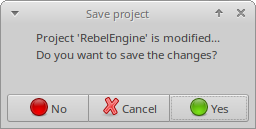
Save the project
Please click Yes. Otherwise, you will need to recreate all of these settings again.
That's it! You're now ready to start contributing to Rebel Engine using the Code::Blocks IDE.