Creating Android plugins
Introduction
Android plugins are powerful tools to extend the capabilities of the Rebel Engine by tapping into the functionality provided by the Android platform and ecosystem.
Mobile gaming monetization is one such example since it requires features and capabilities that don't belong to the core feature set of a game engine:
Analytics
In-app purchases
Receipt validation
Install tracking
Ads
Video ads
Cross-promotion
In-game soft & hard currencies
Promo codes
A/B testing
Login
Cloud saves
Leaderboards and scores
User support & feedback
Posting to Facebook, Twitter, etc.
Push notifications
Android plugin
As a prerequisite, make sure you understand how to set up a custom build environment for Android.
At its core, a Rebel Android plugin is a Android archive library (aar archive file) with the following caveats:
The library must have a dependency on the Rebel Engine Android library (
rebel-lib.<version>.<status>.aar). A stable version is made available for each Rebel release.The library must include a specifically configured
<meta-data>tag in its manifest file.
Building an Android plugin
Prerequisite: Android Studio is strongly recommended as the IDE to use to create Android plugins. The instructions below assumes that you're using Android Studio.
Follow these instructions to create an Android library module for your plugin.
Add the Rebel Engine Android library as a dependency to your plugin module:
Download the Rebel Engine Android library (
rebel-lib.<version>.<status>.aar).Follow these instructions to add the Rebel Engine Android library as a dependency for your plugin.
In the plugin module's
build.gradlefile, replaceimplementationwithcompileOnlyfor the dependency line for the Rebel Engine Android library.
Create a new class in the plugin module and make sure it extends
com.rebeltoobox.plugin.RebelPlugin. At runtime, it will be used to instantiate a singleton object that will be used by the Rebel Engine to load, initialize and run the plugin.Update the plugin
AndroidManifest.xmlfile:
Open the plugin
AndroidManifest.xmlfile.Add the
<application></application>tag if it's missing.In the
<application>tag, add a<meta-data>tag setup as follow:<meta-data android:name="com.rebeltoolbox.plugin.v1.[PluginName]" android:value="[plugin.init.ClassFullName]" />Where
PluginNameis the name of the plugin, andplugin.init.ClassFullNameis the full name (package + class name) of the plugin loading class.
Add the remaining logic for your plugin and run the
gradlew buildcommand to generate the plugin'saarfile. The build will likely generate both adebugandreleaseaarfiles. Depending on your need, pick only one version (usually thereleaseone) which to provide your users with.It's recommended that the
aarfilename matches the following pattern:[PluginName]*.aarwherePluginNameis the name of the plugin in PascalCase (e.g.:MyRebelPlugin.release.aar).Create a Rebel Android Plugin configuration file to help the system detect and load your plugin:
The configuration file extension must be
gdap(e.g.:MyPlugin.gdap).The configuration file format is as follow:
[config]

name="MyPlugin"
binary_type="local"
binary="MyPlugin.aar"

[dependencies]

local=["local_dep1.aar", "local_dep2.aar"]
remote=["example.plugin.android:remote-dep1:0.0.1", "example.plugin.android:remote-dep2:0.0.1"]
custom_maven_repos=["http://repo.mycompany.com/maven2"]
The
configsection and fields are required and defined as follow:
name: name of the plugin.
binary_type: can be either
localorremote. The type affects the binary field.binary:
If binary_type is
local, then this should be the filepath of the pluginaarfile.
The filepath can be relative (e.g.:
MyPlugin.aar) in which case it's relative to theres://android/pluginsdirectory.The filepath can be absolute:
res://some_path/MyPlugin.aar.If binary_type is
remote, then this should be a declaration for a remote gradle binary (e.g.:com.example:my-plugin:0.0.0).The
dependenciessection and fields are optional and defined as follow:
local: contains a list of filepaths to the local
.aarbinary files the plugin depends on. Similarly to thebinaryfield (when thebinary_typeislocal), the local binaries' filepaths can be relative or absolute.remote: contains a list of remote binary gradle dependencies for the plugin.
custom_maven_repos: contains a list of URLs specifying the custom maven repositories required for the plugin's dependencies.
Loading and using an Android plugin
Move the plugin configuration file (e.g.: MyPlugin.gdap) and, if any, its local binary (e.g.: MyPlugin.aar) and dependencies to the Rebel project's res://android/plugins directory.
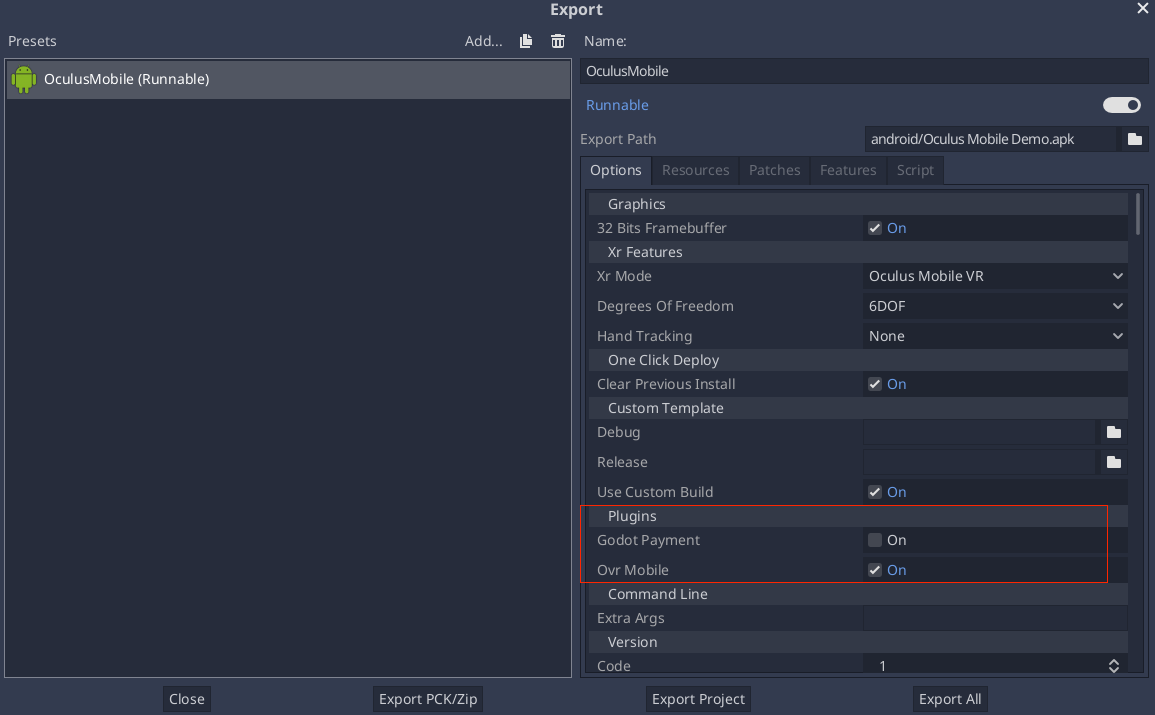
The Rebel Editor will automatically parse all .gdap files in the res://android/plugins directory and show a list of detected and toggleable plugins in the Android export presets window under the Plugins section.
From your script:
if Engine.has_singleton("MyPlugin"):
    var singleton = Engine.get_singleton("MyPlugin")
    print(singleton.myPluginFunction("World"))
Bundling GDNative resources
An Android plugin can define and provide C/C++ GDNative resources, either to provide and/or access functionality from the game logic.
The GDNative resources can be bundled within the plugin aar file which simplifies the distribution and deployment process:
The shared libraries (
.so) for the defined GDNative libraries will be automatically bundled by theaarbuild system.Rebel Engine
*.gdnliband*.gdnsresource files must be manually defined in the pluginassetsdirectory. The recommended path for these resources relative to theassetsdirectory should be:rebel/plugin/v1/[PluginName]/.
For GDNative libraries, the plugin singleton object must override the com.rebeltoolbox.plugin.RebelPlugin::getPluginGDNativeLibrariesPaths() method,
and return the paths to the bundled GDNative libraries config files (*.gdnlib). The paths must be relative to the assets directory.
At runtime, the plugin will provide these paths to Rebel Engine core which will use them to load and initialize the bundled GDNative libraries.
Troubleshooting
Rebel crashes upon load
Check adb logcat for possible problems, then:
Check that the methods exposed by the plugin used the following Java types:
void,boolean,int,float,java.lang.String,com.rebeltoolbox.Dictionary,int[],byte[],float[],java.lang.String[].More complex datatypes are not supported for now.