Qt Creator
Qt Creator is a free, open source, cross platform IDE for developing Qt applications. Rebel Engine is not based on Qt, but Qt Creator can be used to develop other C++ applications like Rebel Engine.
Import Rebel Engine
From the Qt Creator's welcome screen select Create Project….
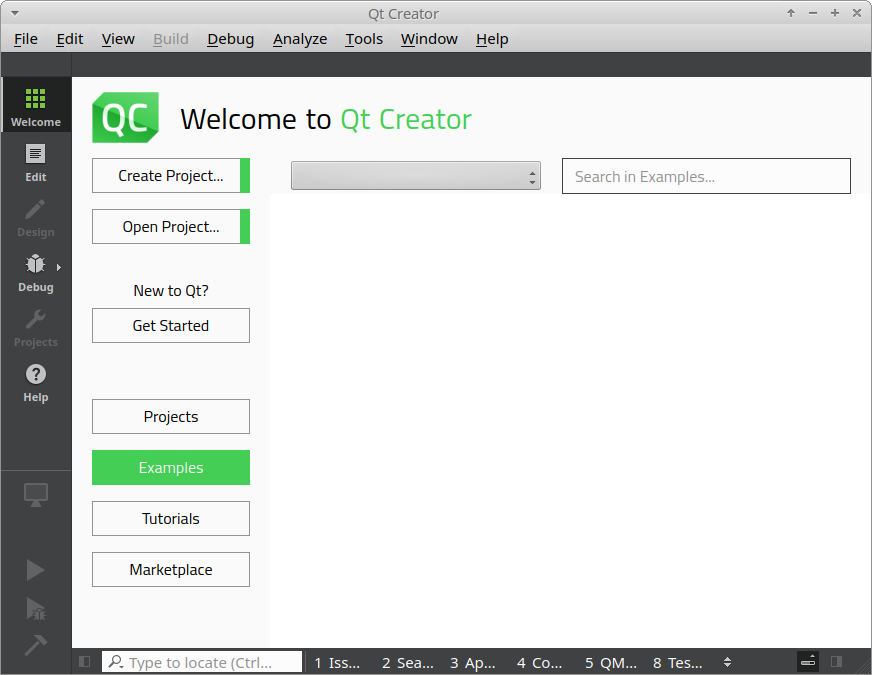
Welcome to Qt Creator
Under Projects, select Import Project and then Import Existing Project.
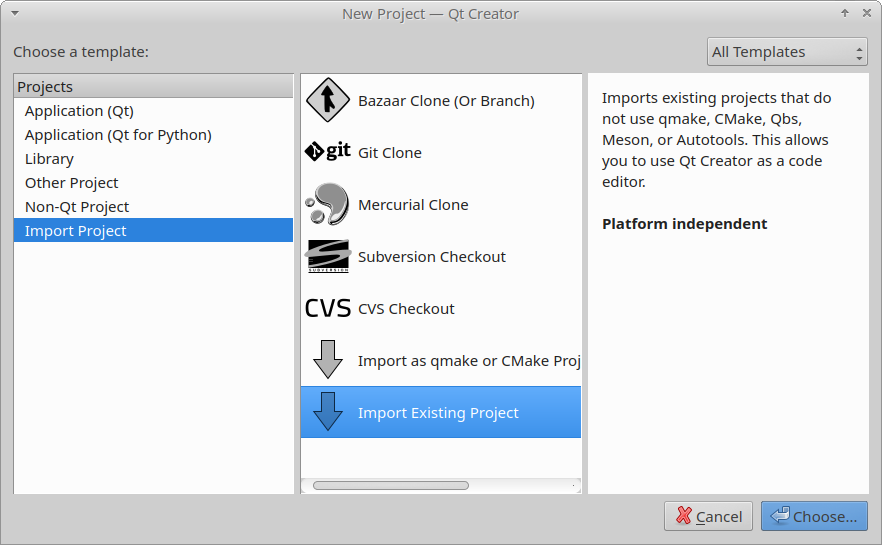
Import Existing Project
Click Choose….
Enter the project name and location.
The Project name can be anything, but it makes sense to call it RebelEngine.
The Location is the root folder where you cloned RebelEngine.
You can use the Browse… button to locate the folder.
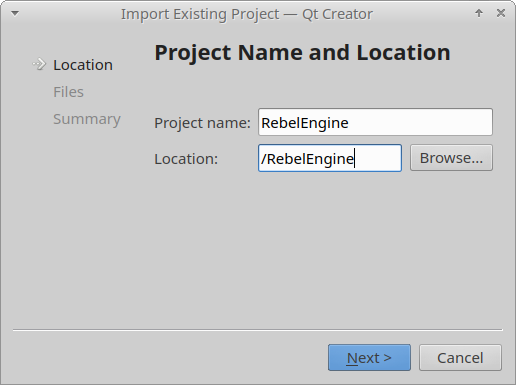
Enter project name and location
Click Next> to continue.
The importer includes a set of default file types to be included. The default file types are sufficient for most purposes. However, if you want to add or remove file types, you can do that here or change them later.
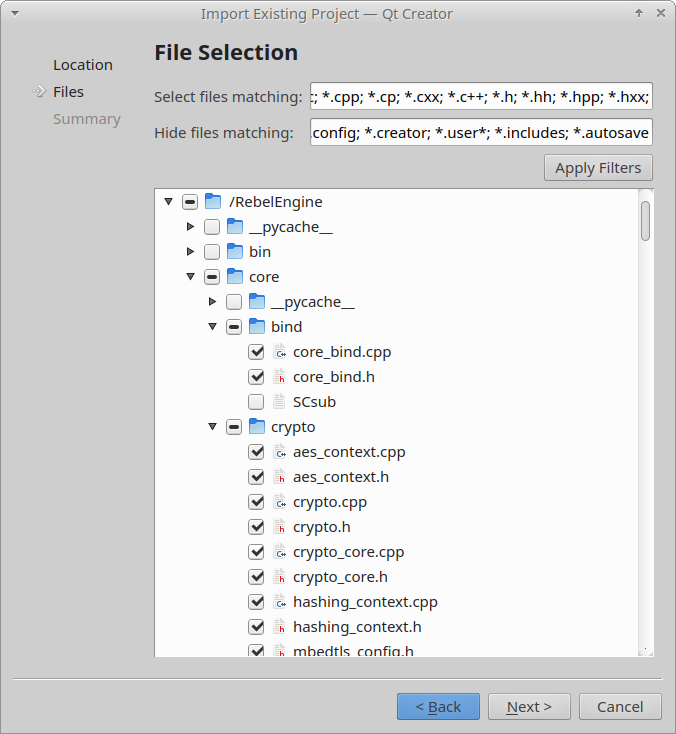
File selection
Click Next> to continue.
On the summary page, we do not want to add the Qt Creator configuration files to Git. For Add to version control:, select <None>.
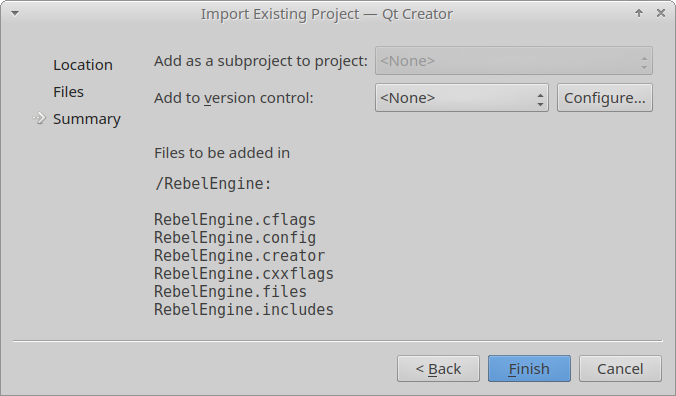
Do not import Qt configuration files to Git
Click Finish. Wait for Qt Creator to import Rebel Engine.
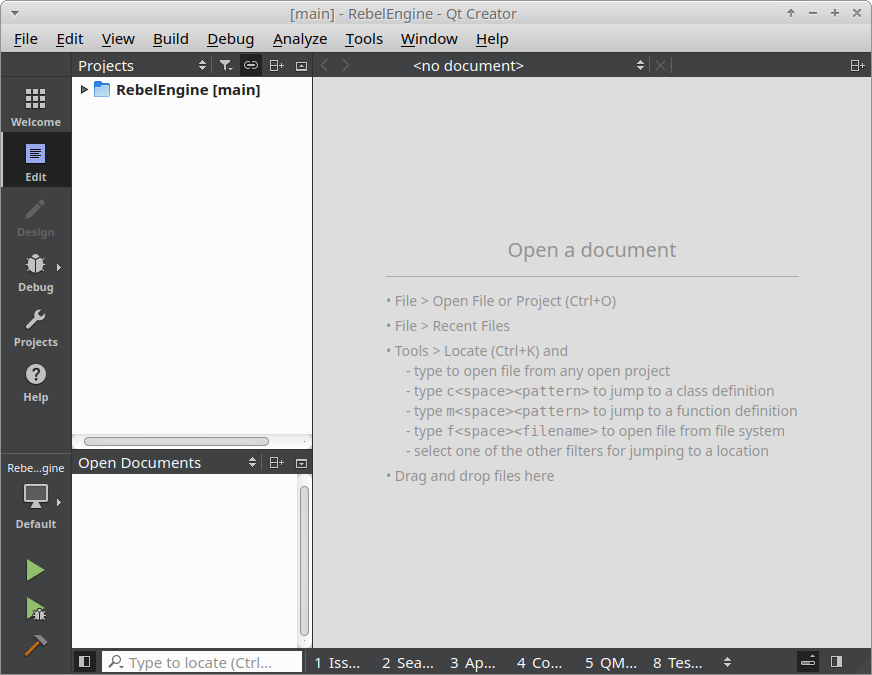
RebelEngine in Qt Creator
As improvements are made to Rebel Engine, files and folders are added, removed and renamed. Qt Creator does not automatically update the files and folders; unless you are personally making the changes. To update the project's files and folders, right-click on the RebelEngine project and select Edit Files….
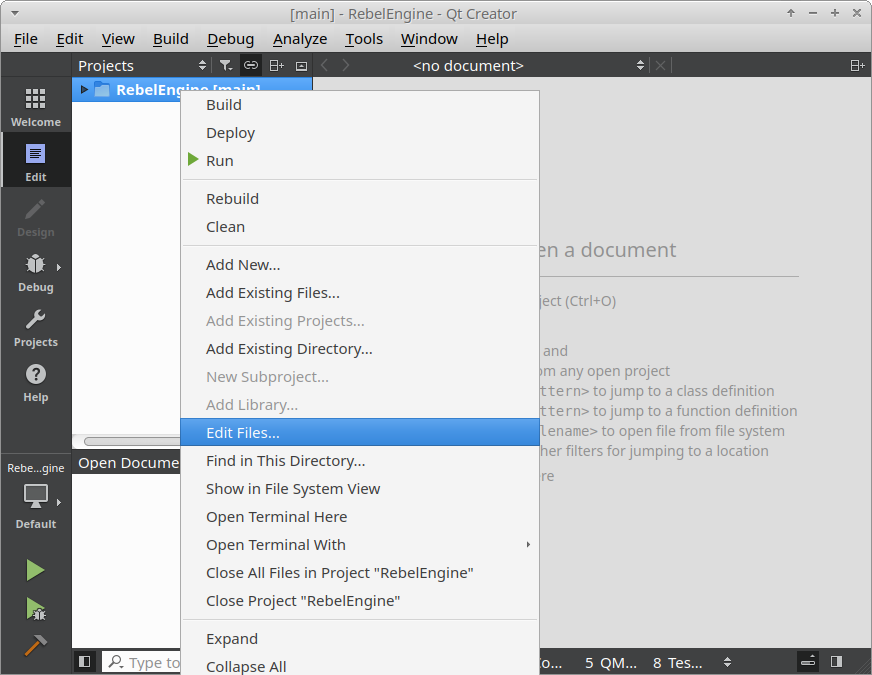
Edit Files
If you want to add or remove file types, you can do that here too. Useful file types to add include:
*.glsl: shader files*.py: buildsystem files*.java: Android platform development*.mm: macOS platform development
Update file selection
Click OK and the list of files and folders will be updated.
Configure includes
Open the RebelEngine.includes file.
Add a line containing ..
This is needed for Qt Creator to find includes in the same directory as the code file.
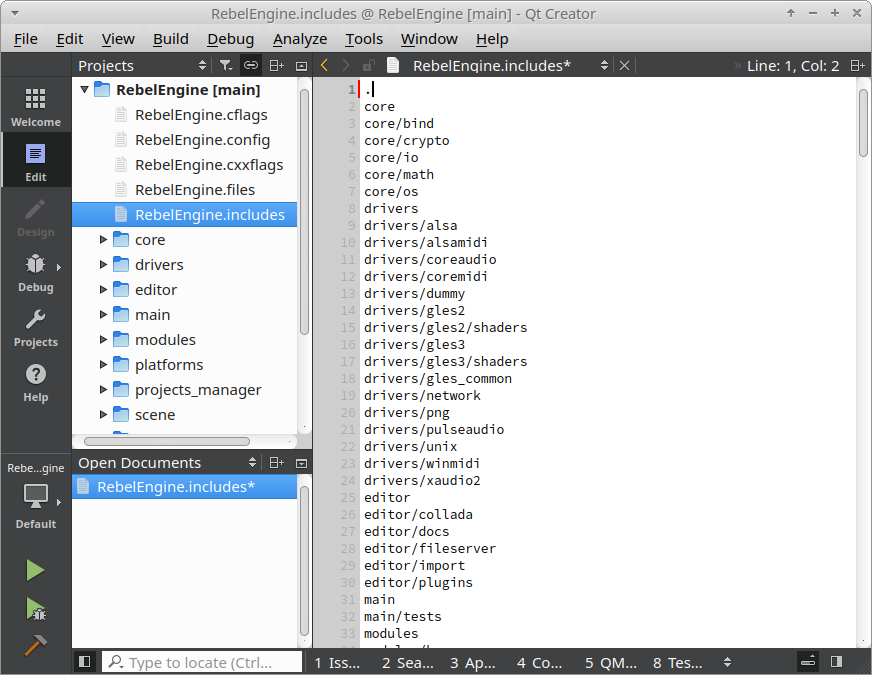
Add . to the list of includes.
Save the file and wait for Qt Creator to update the project again.
Build Rebel Engine
On the left-hand side, select the Projects tab to switch to Projects mode.
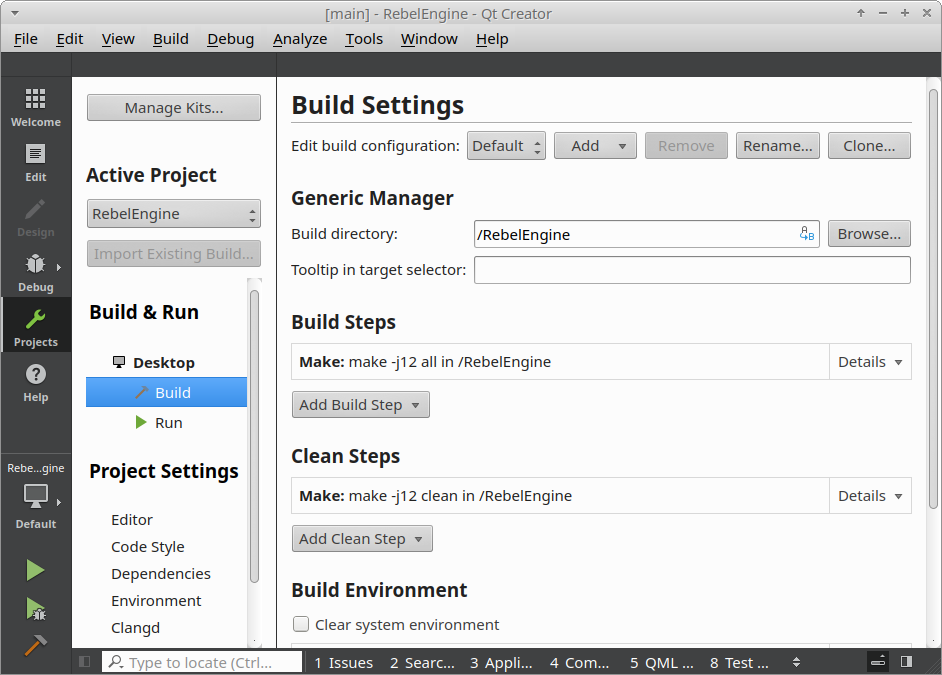
Qt Creator Projects Mode
Here you can add your Build settings. Rebel Engine is compiled using SCons. For details on compiling Rebel Engine using SCons, see Introduction to the buildsystem.
Under Build Steps, remove the default Make build step.
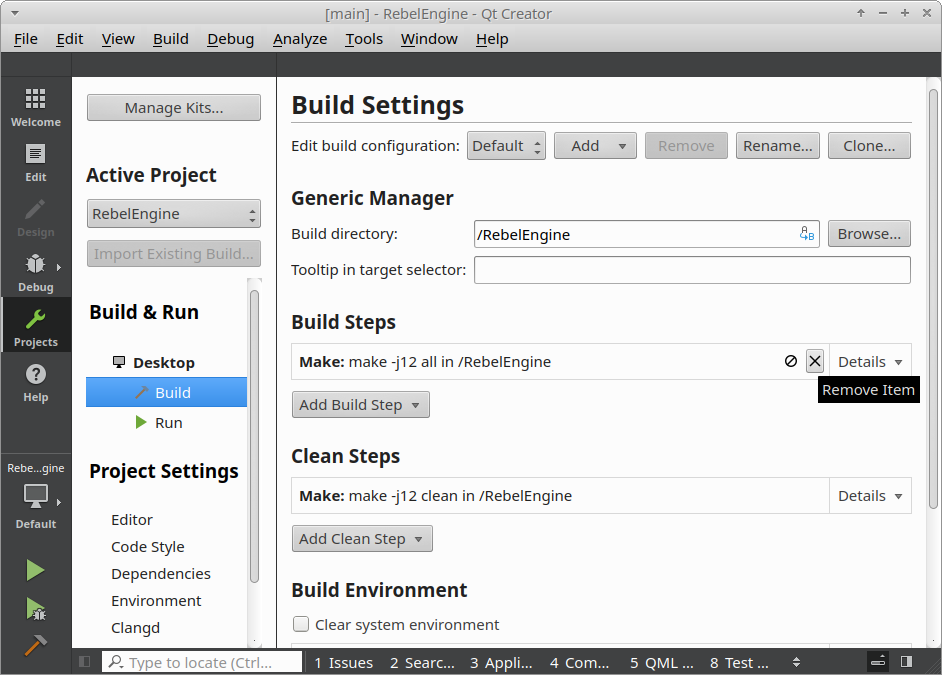
Remove the default Make build step
Add a new custom process step.
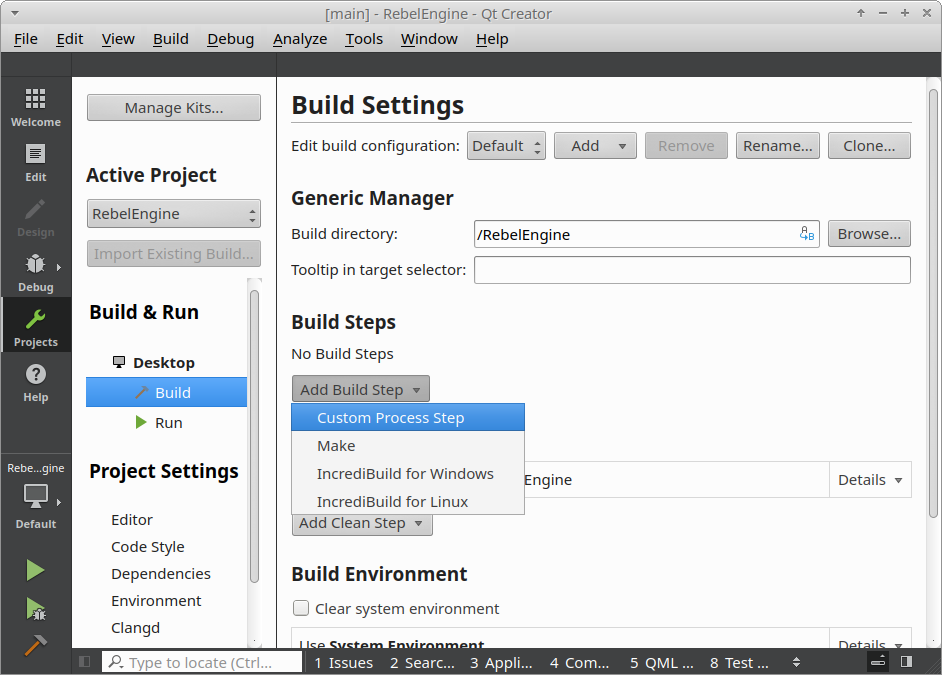
Add a custom process step
Under Command: enter scons.
Under Arguments: enter your desired build options.
Do the same thing for Clean Steps.
Use the same Arguments under Build Steps, but add --clean to the end.
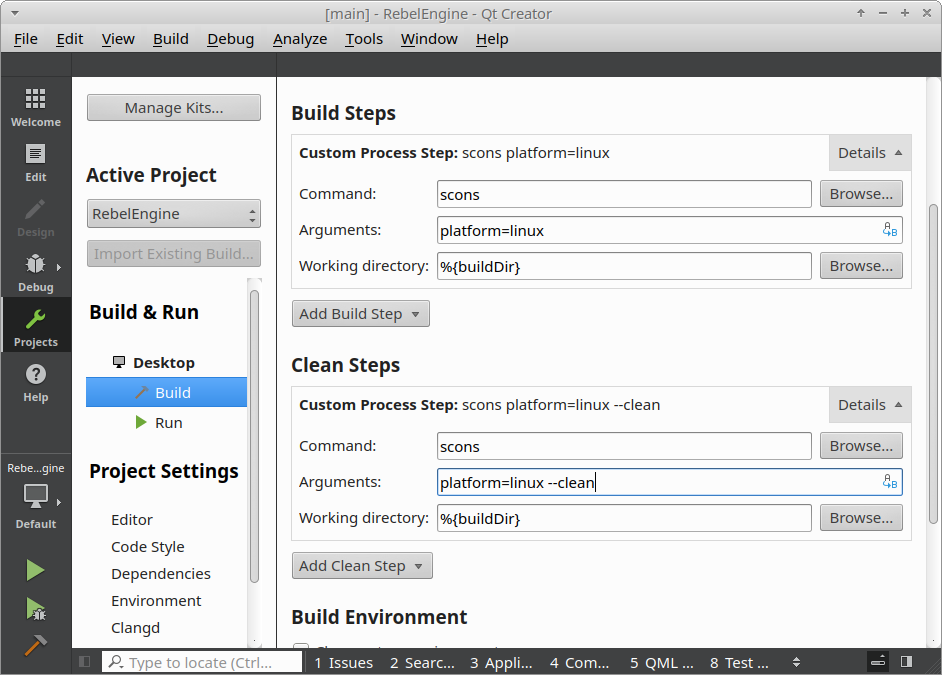
Create the build and clean steps
In the bottom left-hand corner, click the hammer icon to build Rebel Engine. Alternatively, from the Build menu, select Build Project "RebelEngine", or simply Ctrl+B.
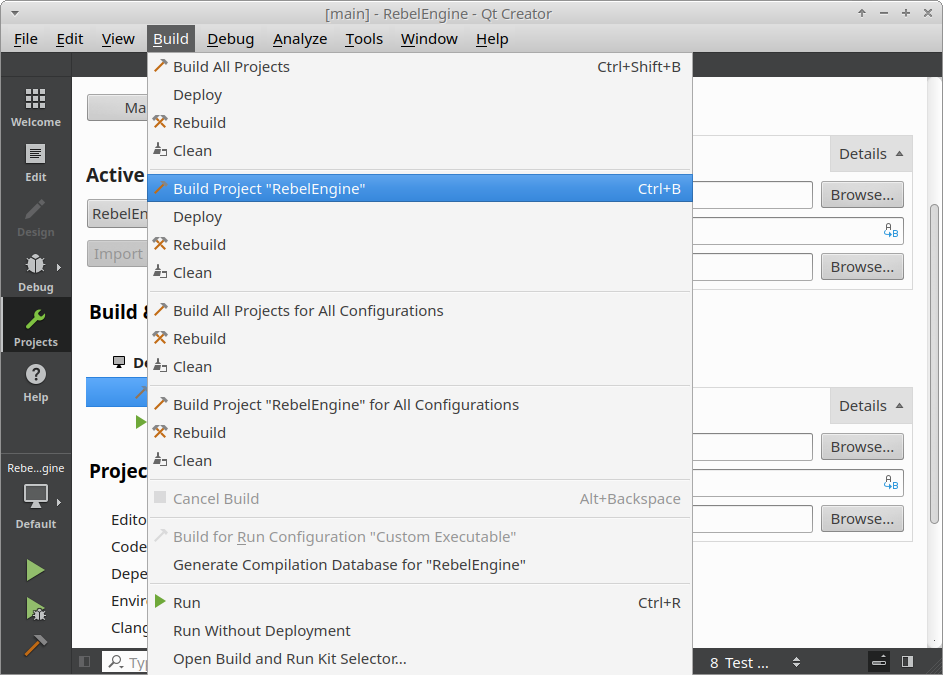
Build Rebel Engine
Run and debug Rebel Engine
Once Rebel Engine has finished building, we can configure the project run settings.
Under Build & Run, select Run.
You can use the Browse button to select the executable created in the bin folder.
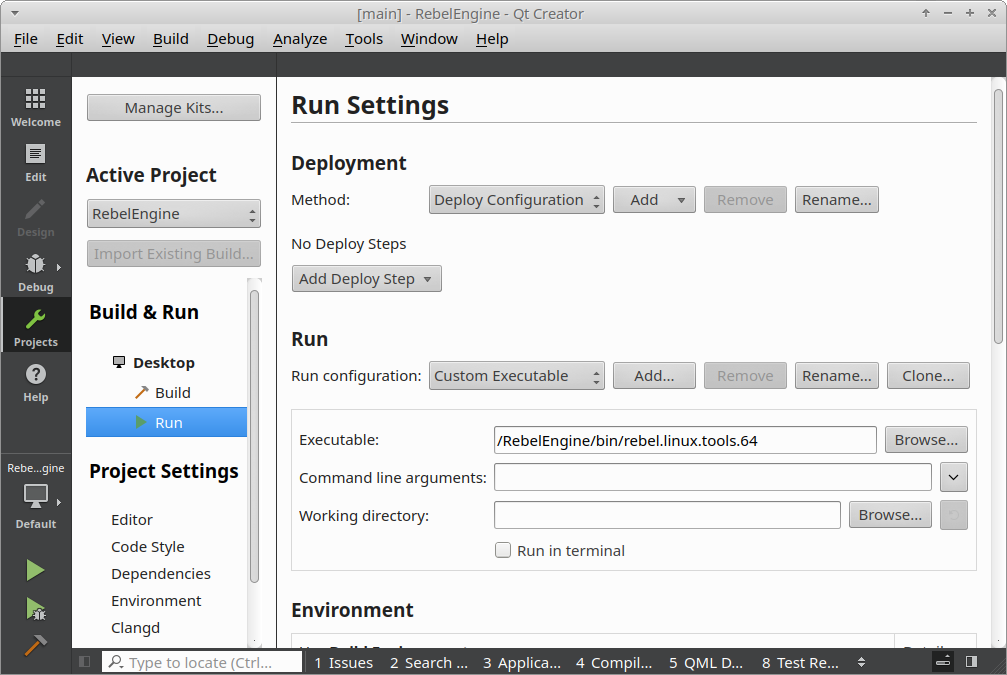
Set Rebel Engine run executable
Note: To test a specific project, the Working directory field can be used.
Set it to the folder containing the project.rebel file.
In the bottom left-hand corner, click the green arrow to run Rebel Engine. Click the green arrow with the bug to debug Rebel Engine. Alternatively, from the Build menu, select Run, or simply Ctrl+R to run Rebel Engine.
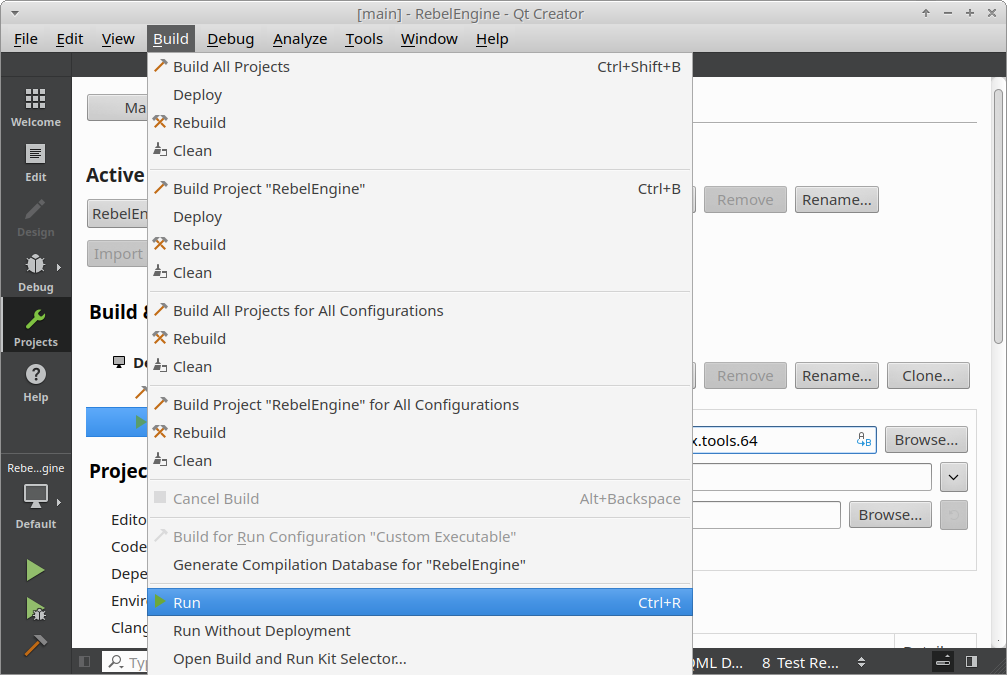
Run Rebel Engine
That's it! You're now ready to start contributing to Rebel Engine using Qt Creator.